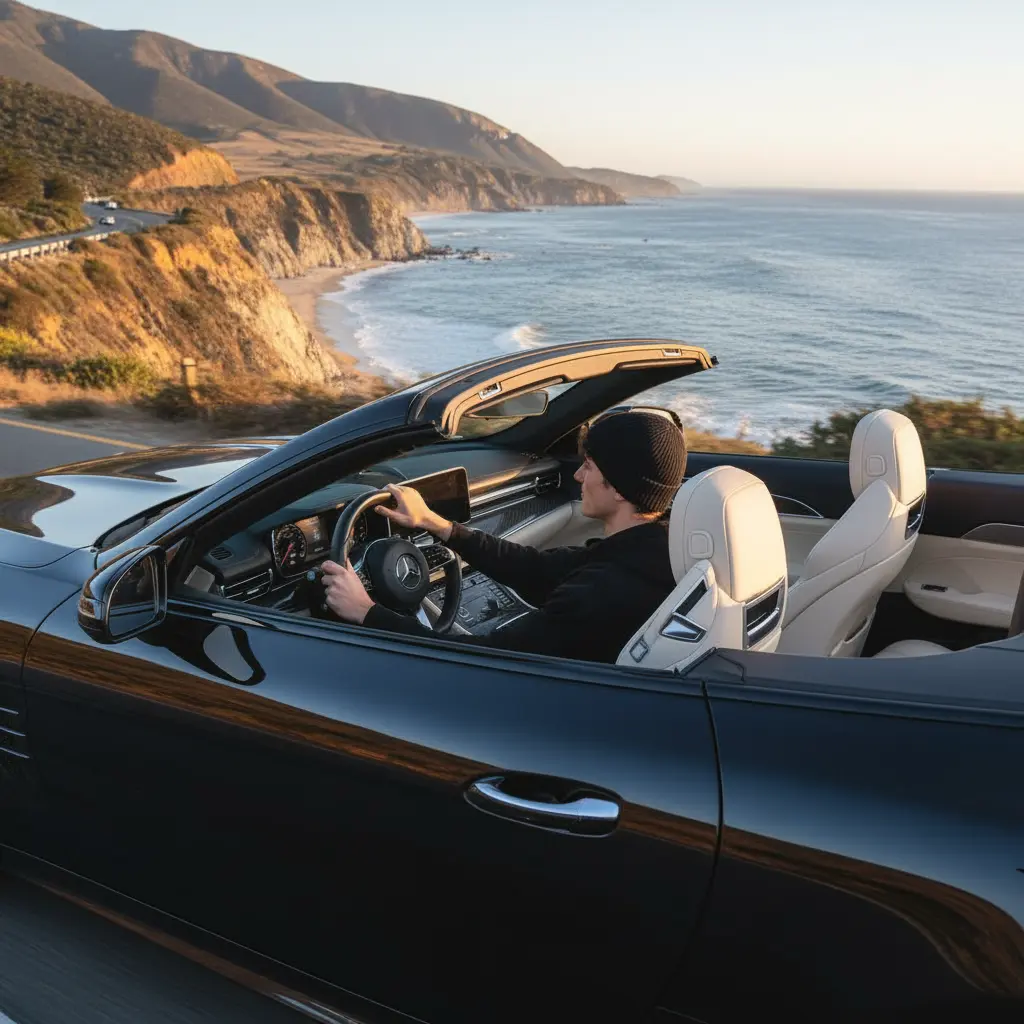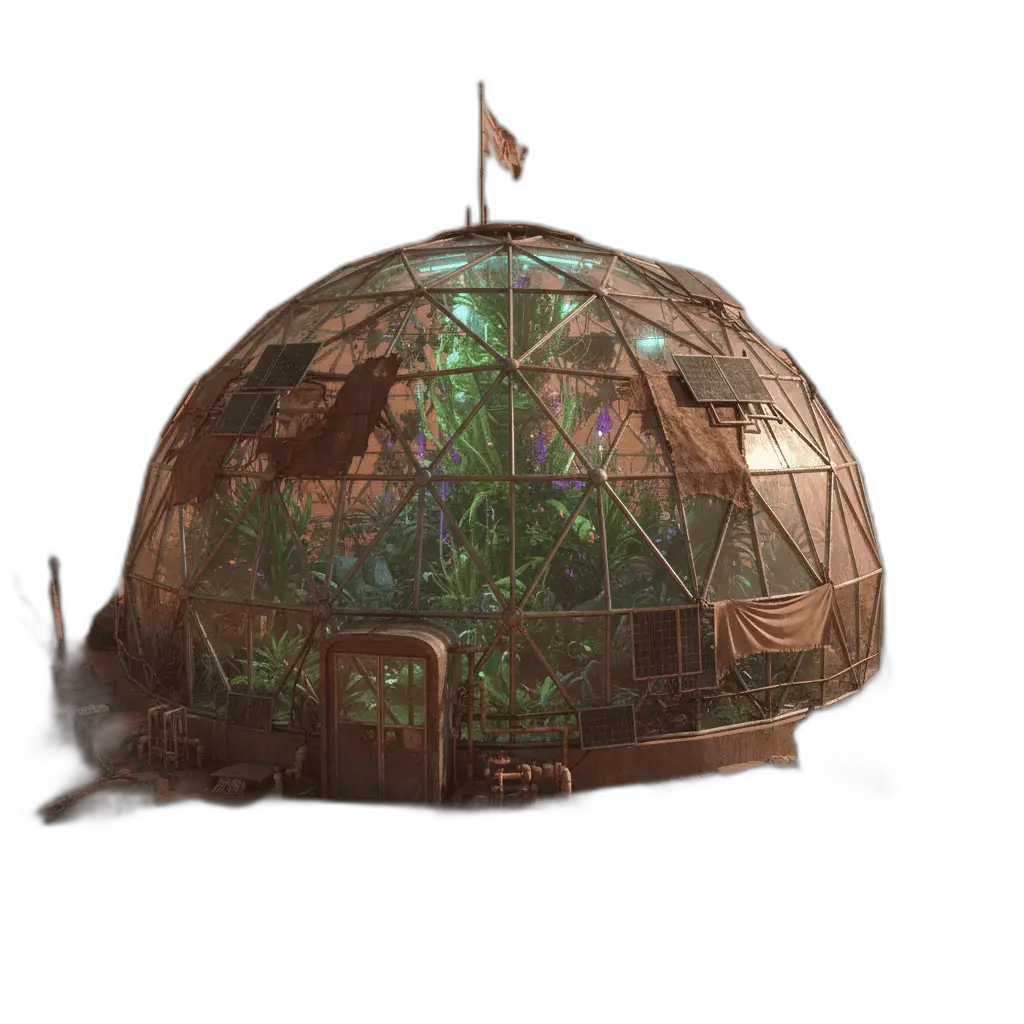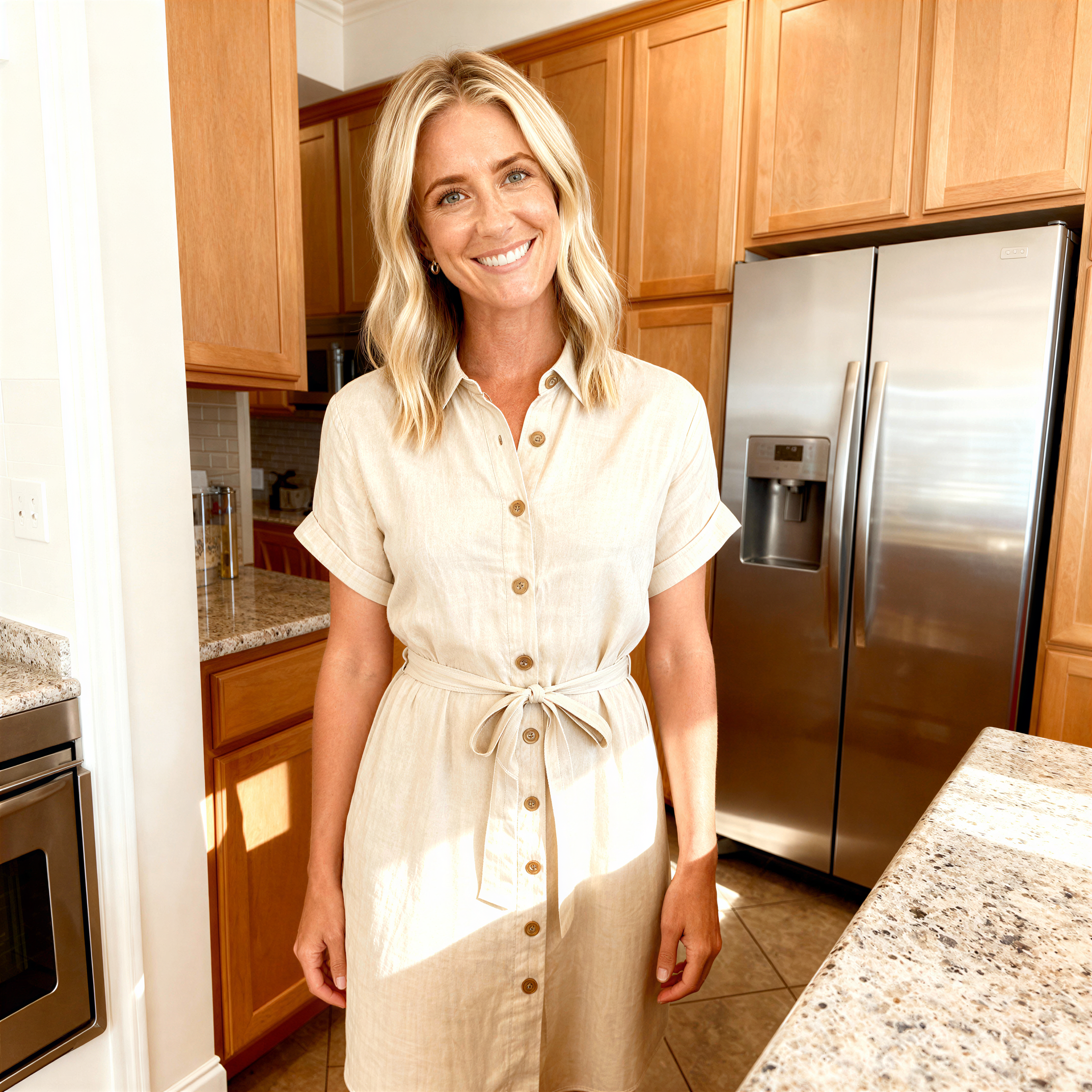
Editorial and social frames
Write a scene for a post, article header, or campaign still, then export the size you need.
Online tool
Choose a curated GPT Image style prompt, add your idea, and generate instantly.
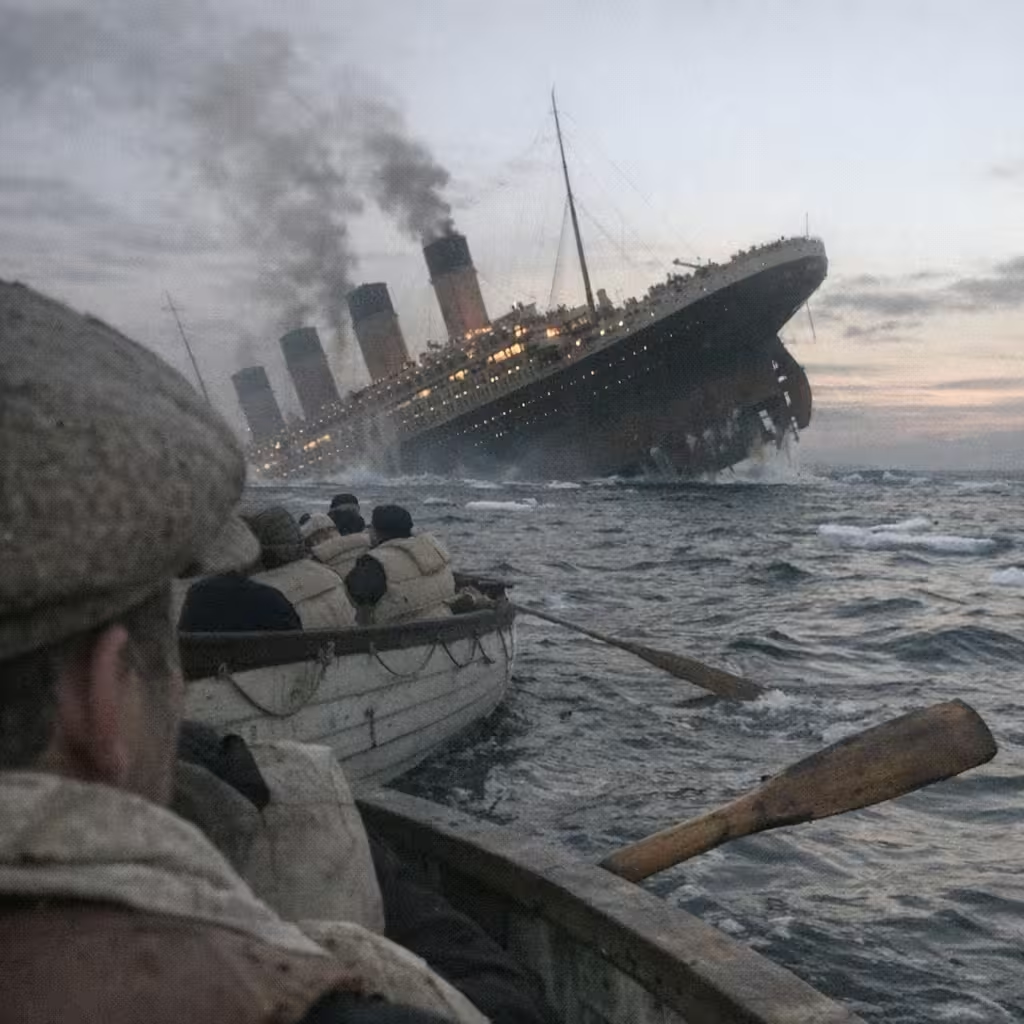
Text to image turns a written prompt into a still picture. You describe the subject, setting, lighting, and style, then generate in the workspace. Use it when you do not have a source photo and want a new frame instead of an edit.
The workspace keeps the prompt on the canvas and model, size, and format in the control rail. GPT Image 2 is the default model. History stores finished jobs so you can download again or continue in another tool.
Write a scene for a post, article header, or campaign still, then export the size you need.
Describe a product, character, or interior before you shoot or draw a first version.
Ask for film, illustration, or graphic looks without uploading a reference photo.
Keep the same brief and change one clause at a time until the frame matches.
Learn what the tool does here, then create in a focused workspace built around the task.
The main field is the description. Enhance prompt is optional before you run.
Pick the model, quality, aspect, and file format without leaving the page.
Save the file, then open the same job later from History.
Use a result as the next input in image to image, video, or a style tool.
Make a cover or in-feed still from a short scene description.
Describe packaging, a poster, or a lifestyle shot before a photoshoot.
Block a character, location, or key pose for a pitch.
Try a look quickly without collecting reference images first.
Write a clear prompt describing the image you want to create.
Choose the available task and output options in the control rail.
Review the result in the workspace, then download it or continue with another image.
This page explains the tool and its use cases. The /app workspace is where creation happens.
No. This tool starts from a text prompt; an image upload is not required.
Image inputs generally support JPG, PNG, and WEBP. The upload area shows the exact limits.
Yes. Download the result, revisit it from history, or use it as the next input where supported.
The rail lists the models available for this workspace, including GPT Image 2. Credit cost is shown on Run.
Change one part of the prompt at a time. Keep the subject, then adjust light, lens, or style.
Quality depends on the model and settings in the workspace. Download the result, then run again with a different prompt, model, or size if you need another take.
You can read this page without signing in. Creating in the workspace uses credits and requires an account.
Download the file you generate and use it in your projects. Read the current terms if you need commercial-use details.
Open the VibePicture workspace and turn your idea into a usable visual.
Open Studio