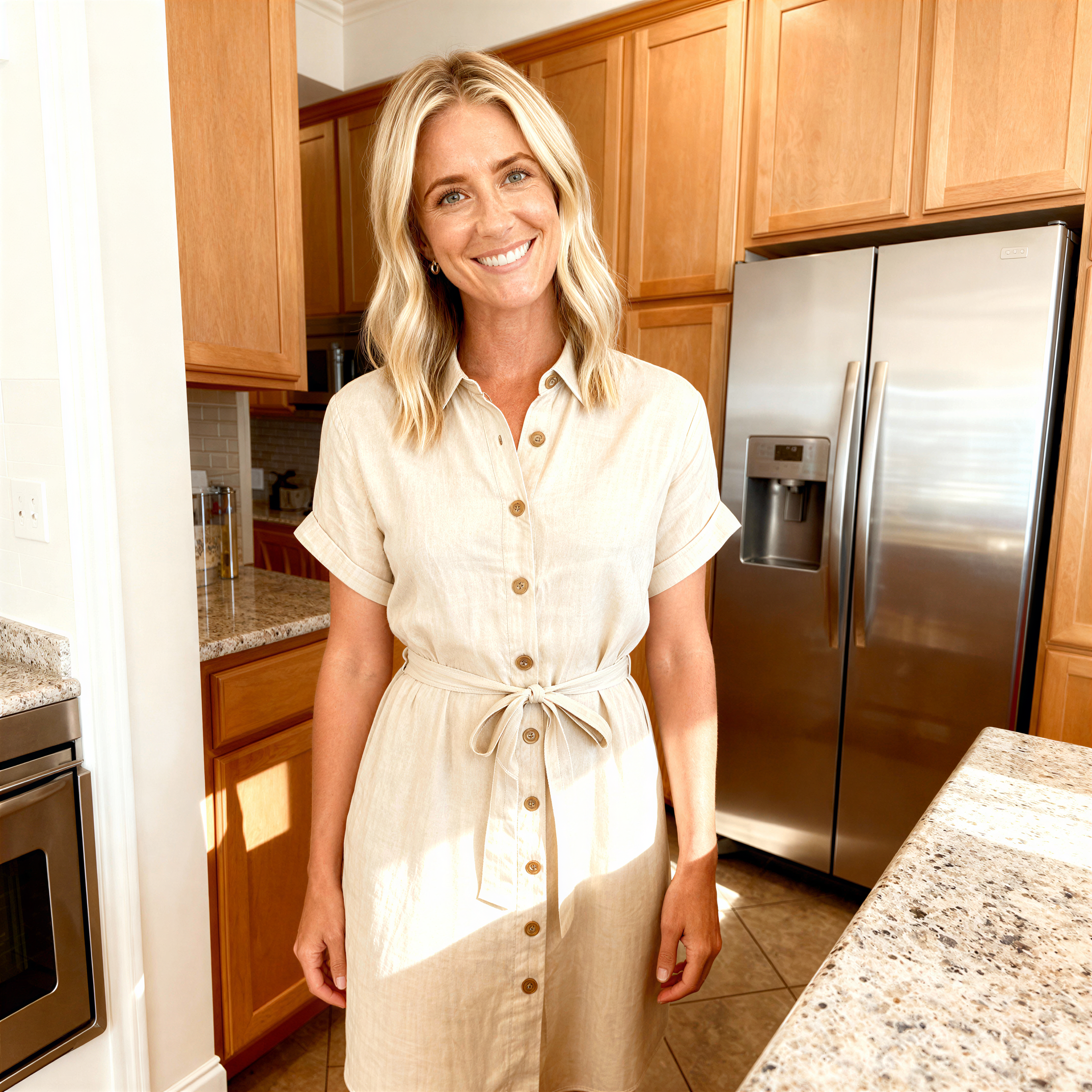
Product cutouts
Place a pack shot on a new background in your layout tool.
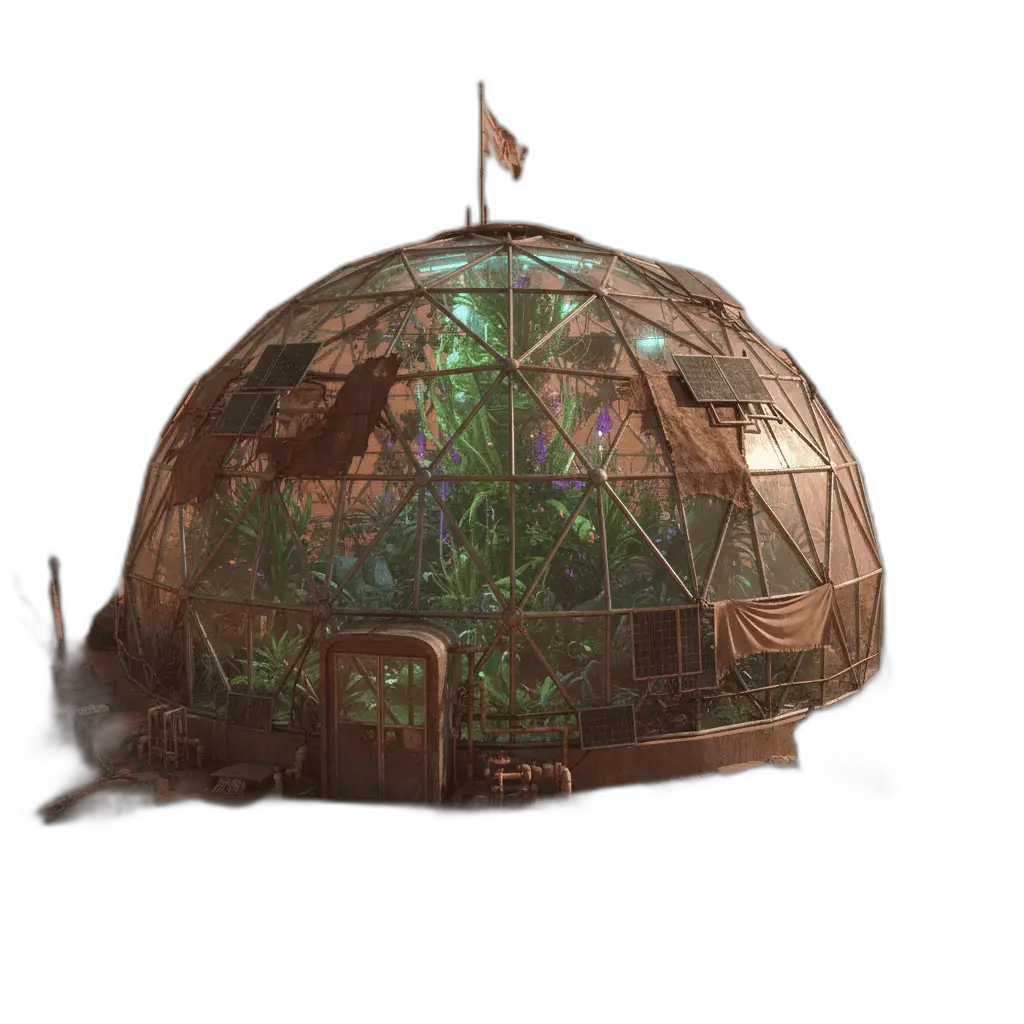
Background remover isolates the subject and returns a transparent PNG. There is no control rail. Upload, run, and download on one canvas. Use it for product cutouts, profile photos, and collage sources.
The tool accepts common still formats. After you have a cutout, send it to sticker, outline, or layered edit if you need a next step.
Place a pack shot on a new background in your layout tool.
Keep the person and drop the original room or street.
Stack several cutouts in another editor.
Export transparency for stickers, slides, or marketplaces.
Learn what the tool does here, then create in a focused workspace built around the task.
No empty settings column. Upload and result share the same surface.
The usual output is a cutout you can place on any ground.
Follow the workspace labels if a private local path is available.
Use the PNG in outline, sticker, or a generator that accepts an image.
Cut products for white or branded grounds.
Remove a busy office or cafe behind a headshot.
Drop a subject onto a slide without a boxy original background.
Feed a clean silhouette into bead maker or sticker.
Drop, select, paste, or load the image URL in the central upload area.
Confirm the source image in the canvas. This tool needs no separate settings rail.
Review the result in the workspace, then download it or continue with another image.
This page explains the tool and its use cases. The /app workspace is where creation happens.
Yes. This tool needs a source image, and the workspace supports file selection, drag and drop, paste, and image URLs.
Image inputs generally support JPG, PNG, and WEBP. The upload area shows the exact limits.
Yes. Download the result, revisit it from history, or use it as the next input where supported.
Fine edges vary by photo. A high-contrast source usually cuts cleaner.
No. This tool is full-width. Confirm the image and run.
Quality depends on the model and settings in the workspace. Download the result, then run again with a different prompt, model, or size if you need another take.
You can read this page without signing in. Creating in the workspace uses credits and requires an account.
Download the file you generate and use it in your projects. Read the current terms if you need commercial-use details.
Open the VibePicture workspace and turn your idea into a usable visual.
Open Studio