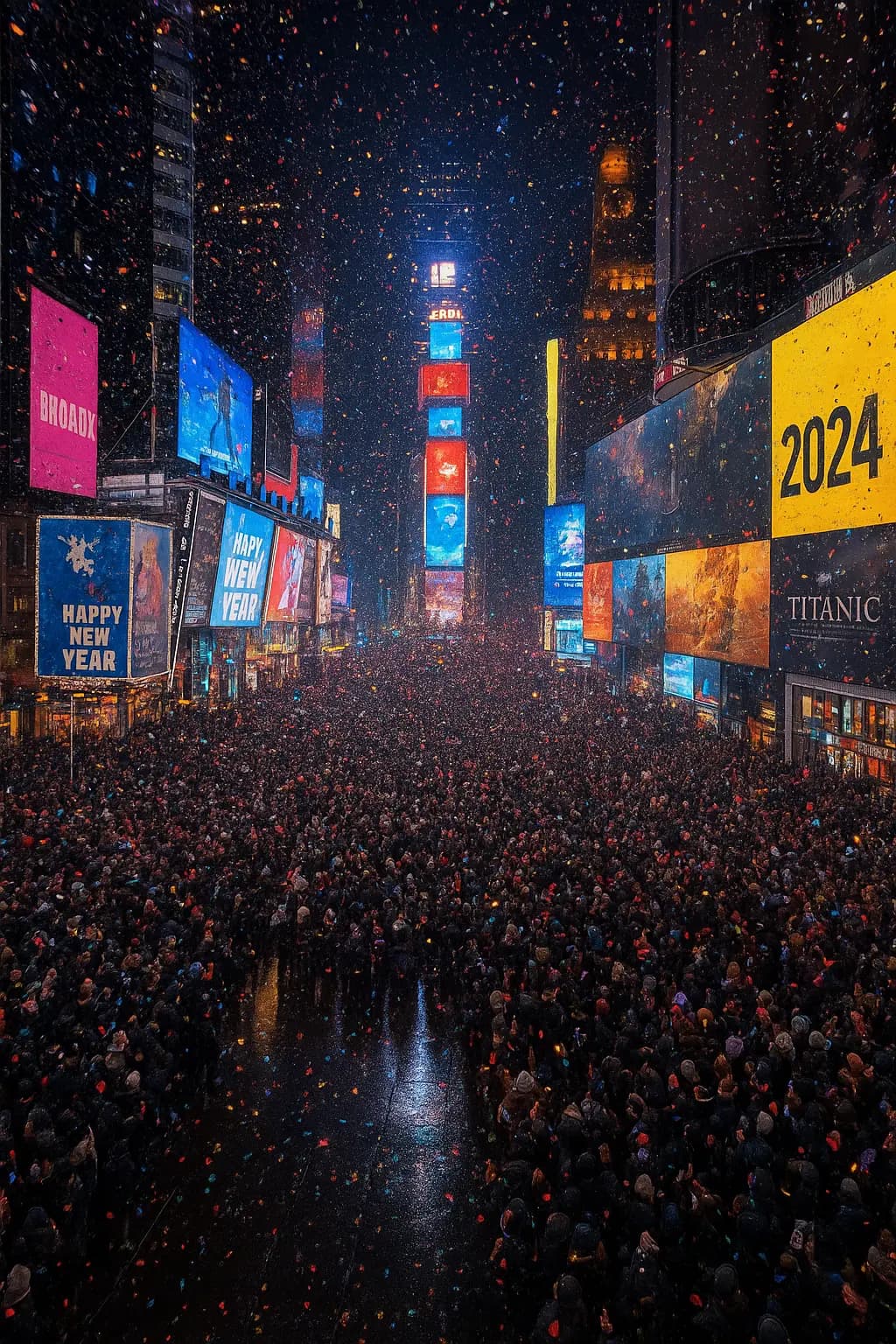
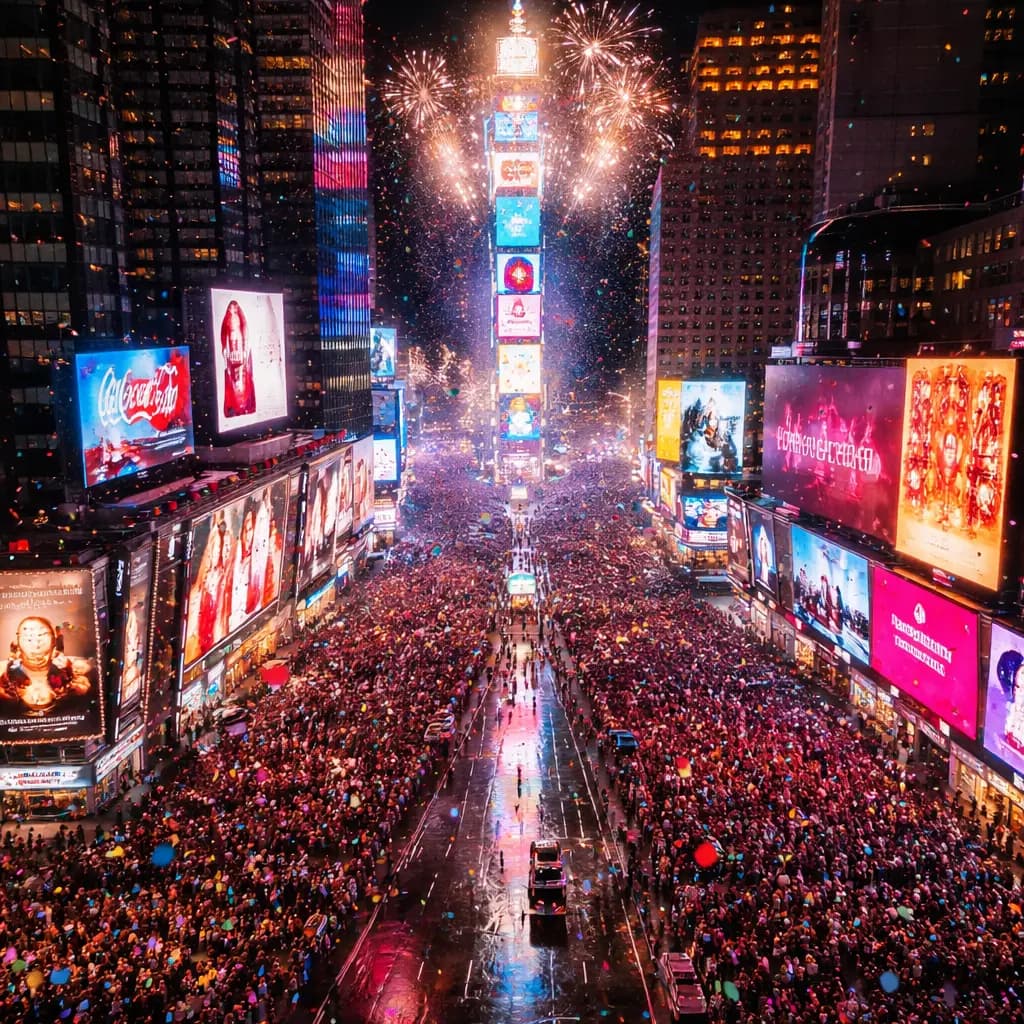
Detailed stills
Scenes that need materials and small objects held in place.
Online tool
Create stunning images with GPT Image 1.5. Supports text-to-image and image editing capabilities.

GPT Image 1.5 is the previous OpenAI still-image model in this studio. It keeps lighting and fine detail from a written brief. This page opens text-to-image with GPT Image 1.5 selected.
Prefer it when you already have a 1.5 workflow, or when you want a lower-cost OpenAI option than GPT Image 2. Quality in the rail still changes credit use.
Scenes that need materials and small objects held in place.
Keep camera and layout from a long prompt.
Catalog-style pictures from a description.
Add a source image when you need a change, not a new scene.
Learn what the tool does here, then create in a focused workspace built around the task.
The dropdown opens on GPT Image 1.5.
Low, medium, and high, same family as other GPT Image models.
Same canvas and rail as every other text-to-image model.
Download again from History after the job finishes.
A first photoreal pass before you switch to Image 2.
Simple product on a described background.
Try lighting language without a photoshoot.
One source photo, several prompt changes.
Write a clear prompt describing the image you want to create.
Choose the available task and output options in the control rail.
Review the result in the workspace, then download it or continue with another image.
This page explains the tool and its use cases. The /app workspace is where creation happens.
No. This tool starts from a text prompt; an image upload is not required.
Image inputs generally support JPG, PNG, and WEBP. The upload area shows the exact limits.
Yes. Download the result, revisit it from history, or use it as the next input where supported.
Use Image 2 when type inside the picture must be sharp. Stay on 1.5 if you already like its look or cost.
No. Generation runs in /app/text-to-image with this model selected.
Quality depends on the model and settings in the workspace. Download the result, then run again with a different prompt, model, or size if you need another take.
You can read this page without signing in. Creating in the workspace uses credits and requires an account.
Download the file you generate and use it in your projects. Read the current terms if you need commercial-use details.
Open the VibePicture workspace and turn your idea into a usable visual.
Open Studio