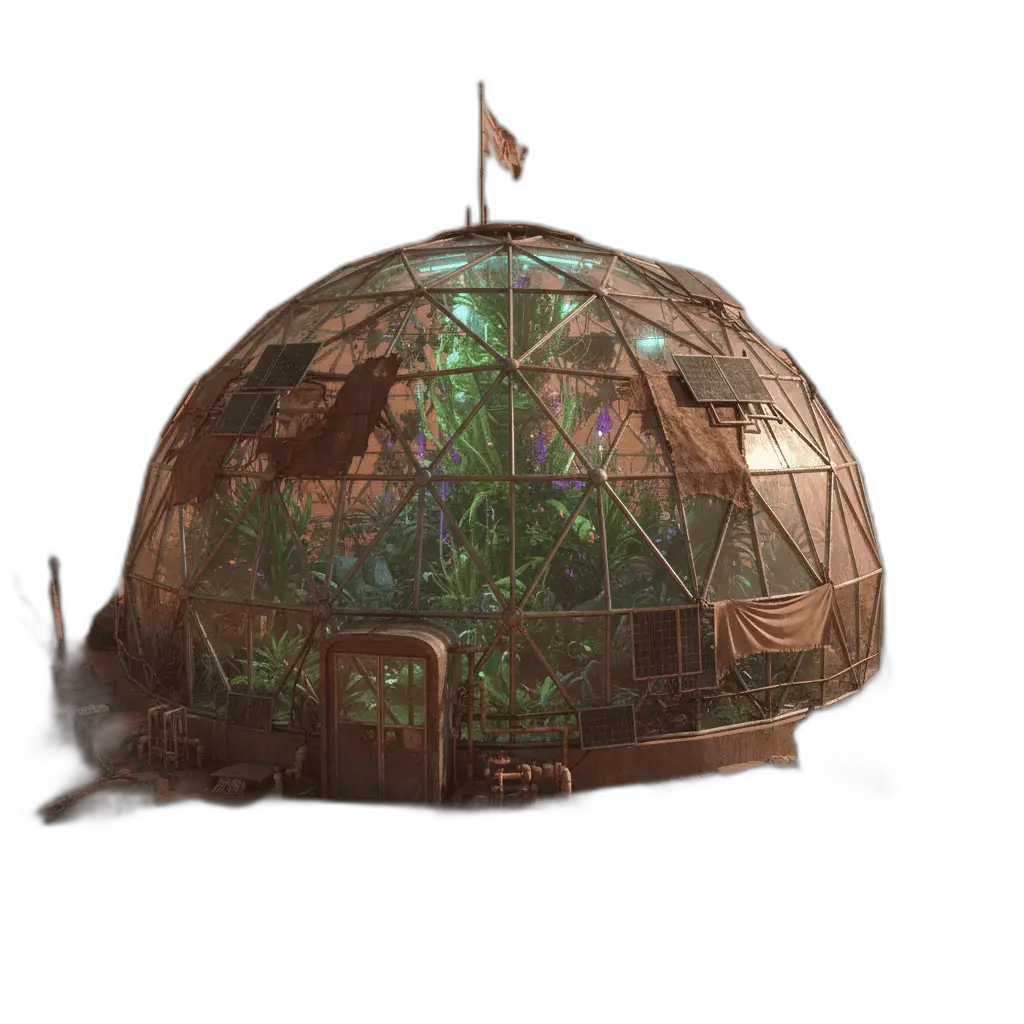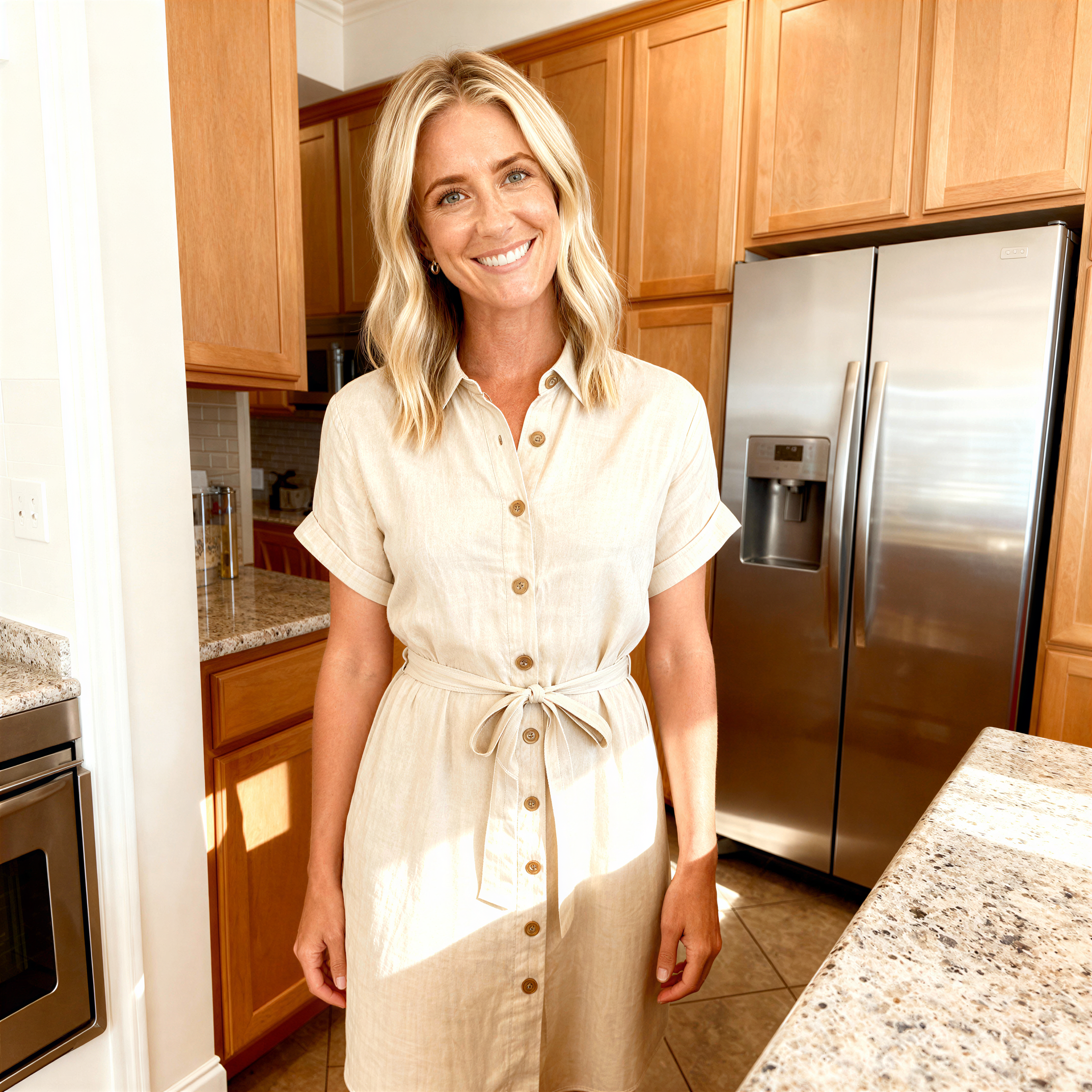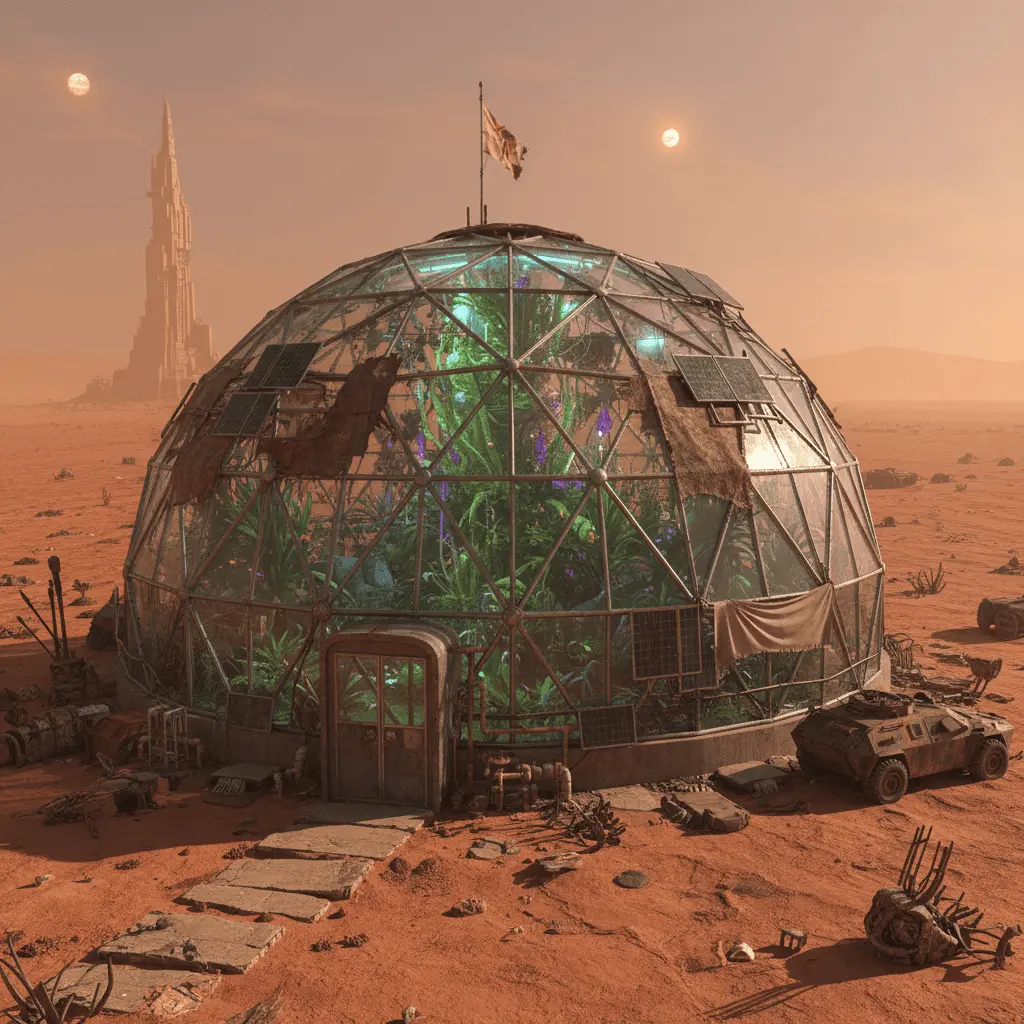
Person in a new place
Place a portrait into a location still.
Online tool
Blend and transform one or two reference images with an editing prompt.

Layered edit takes one or two reference stills and a prompt. Use it to combine a person with a scene, a product with a new ground, or two design frames. It is closer to a directed composite than a filter.
Upload the primary still, add a second still when you have one, write the relationship you want, then run. Download the composite and keep both sources in history.
Place a portrait into a location still.
Sit a pack shot in a lifestyle frame.
Blend two layouts or textures on purpose.
Hold a source and a target look in one job.
Learn what the tool does here, then create in a focused workspace built around the task.
The second image is optional. Leave it empty when you only have one reference.
Say what should come from each image.
Model and output sit beside the prompt.
History keeps the job so you can retry.
Drop an actor into a set still.
Put a product into a room you already shot.
Mix a texture plate with a figure.
Show two composite directions from the same pair.
Drop, select, paste, or load the image URL in the central upload area.
Choose the available task and output options in the control rail.
Review the result in the workspace, then download it or continue with another image.
This page explains the tool and its use cases. The /app workspace is where creation happens.
Yes. This tool needs a source image, and the workspace supports file selection, drag and drop, paste, and image URLs.
Image inputs generally support JPG, PNG, and WEBP. The upload area shows the exact limits.
Yes. Download the result, revisit it from history, or use it as the next input where supported.
No. Use it when you have a second reference. Otherwise run with one still and a prompt.
Ask the prompt to match light. Large mismatches may still show.
Quality depends on the model and settings in the workspace. Download the result, then run again with a different prompt, model, or size if you need another take.
You can read this page without signing in. Creating in the workspace uses credits and requires an account.
Download the file you generate and use it in your projects. Read the current terms if you need commercial-use details.
Open the VibePicture workspace and turn your idea into a usable visual.
Open Studio